Ads

Changing the dual boot order using the boot.ini or BCDEdit.exe


The primary tool to edit Windows Vista boot configuration is BCDEdit.exe, a tool which is included in Windows Vista distribution in the;

C:\windows\system32 folder 
(C: being the windows vista system drive). 

BCDEdit.exe allows you to change and configure boot application data (files) in the BCD (Boot Configuration Data) stores which replace the settings in the boot.ini file in earlier versions of Windows.

BCDEdit basically replaces the BootCfg.exe tool that was used with earlier versions of Windows. BCDEdit provides much better and wider command line options and can do much more tasks than BCDCfg.

Here’s how you can use BCDedit to change the boot sequence and display order in the boot menu.

1. Start > Cmd > Right Click cmd> Run as Administrator

2. At the command prompt :

a. C:\> cd windows/system32

b. C:\windows\system32> bcdedit /?

c. C:\windows\system32> bcdedit /enum all

d. The output displays the boot configuration data of all the operating systems on the computer:

Windows Boot Loader

identifier {current}

device partition=C:

path \Windows\system32\winload.exe

description Microsoft Windows Vista

locale en-US

inherit {bootloadersettings}

recoverysequence {572bcd56-ffa7-11d9-aae0-007e994107d}

recoveryenabled Yes

osdevice partition=C:

systemroot \Windows

resumeobject {89b97029-9609-11db-bbfe-cfc7153012f0}

nx OptIn

e. Note the 128-bit GUID of the Windows XP system. You will have a similar entry for that.

f. C:\Windows\system32> bcdedit /default

E.g bcdedit /default {cbd971bf-b7b8-4885-951a-fa03044f5d71}

Where {cbd971bf-b7b8-4885-951a-fa03044f5d71} is the GUID of the Windows XP system.

In case you wish to delete the Windows XP entry from the boot menu:

g. c:\windows\system32> bcdedit /delete

You can also change the description of an entry using the following command:

h. Bcdedit /set ID description "The new description"


For example:

bcdedit /set {802d5e32-0784-11da-bd33-000476eba25f} description "My Favorite OS"

You can change the display order of the boot options using the following command:

i. bcdedit /displayorder ID1 [ID2] [ID3] [...]

For example :

bcdedit /displayorder {802d5e32-0784-11da-bd33-000476eba25f}

{cbd971bf-b7b8-4885-951a-fa03044f5d71}

This will change the diplay order of the entries the next time the system is turned on only.

In order to make permanant changes to the boot order you can use the following command:

j. bcdedit /bootsequence ID1 [ID2] [ID3] ...

For example:

bcdedit /bootsequence {802d5e32-0784-11da-bd33-000476eba25f}

{cbd971bf-b7b8-4885-951a-fa03044f5d71}

The following command sets the boot manager’s timeout to 30 seconds:

k. Bcdedit /timeout 30


How to change the boot sequence in the BIOS

Looking to change the boot order for your Windows XP or Vista machine? 

By changing the boot order, you can force your computer to boot from a CD/DVD drive, a floppy drive, or even off the network.

Changing the boot order on a PC is mostly done in order to boot from a recovery disk or from an OEM disk to run some kind of Windows repair software, such as the Recovery Console.

So here are the steps to change the boot sequence for a PC:

Step 1: The first thing you have to do is restart your computer and enter the BIOS. You can enter the BIOS when you see a message such as “Press FX to enter setup” or something similar.

On a Dell machine it’s usually F2, Toshiba is F1 or ESC, HP is F1 or F2, and IBMs usually require you to go to Start, Programs and then Thinkpad CFG to start up in the BIOS.

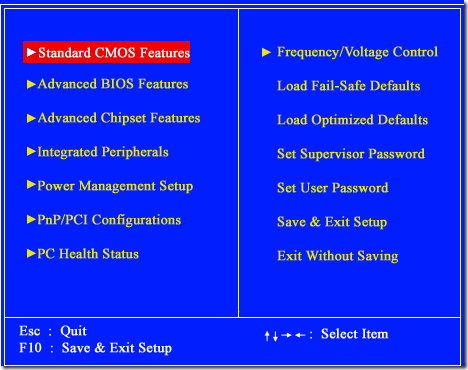
Step 2: Now that you are in the BIOS, the tough part is finding the boot order section. Note that there are not a ton of options in a BIOS, so just go through every page if you have to until you see something like First Boot Device, Boot Order, Boot Management, Boot Sequence, etc.


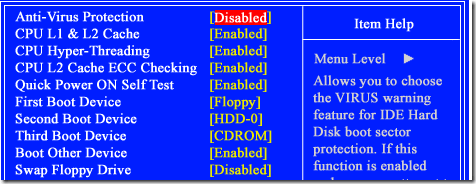
It may also be under Advanced BIOS Features or Advanced Boot Options. In the above screenshot, it’s under Advanced BIOS Features. Use the arrow keys to navigate.


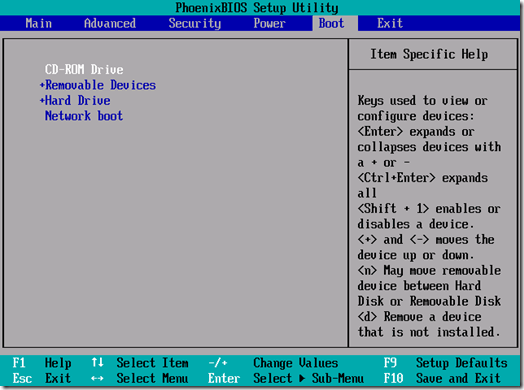
As you can see, there is a First, Second and Third Boot Device. Scroll down and use the arrow keys to change the device to HDD (hard drive), Floppy, CDROM, or Network. You could also have a BIOS that looks like this:


The instructions for changing the boot order are in the sidebar, but usually it requires pressing the + or – buttons to move items up and down in the order list. The first item in the list is what will be scanned first when booting. 
If boot media is not found, it will try the second device and so on.

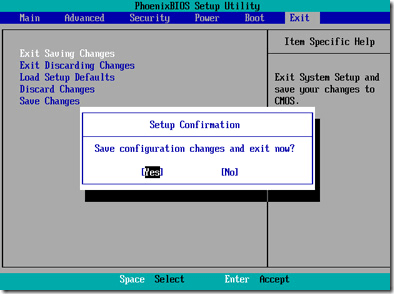
Finally, go to Exit and make sure you choose Yes to the Save configuration changes and exit now? question.


That’s pretty much it!
If you have any questions or can’t get into the BIOS on your computer, post a comment here and I will try to help! Enjoy!


Source

What is the BIOS?

The Basic Input Output System, abbreviated as BIOS, is software stored on a small memory chip on the motherboard.

BIOS is sometimes incorrectly referred to as the Basic Integrated Operating System.


What is the BIOS Used For?:

BIOS instructs the computer on how to perform a number of basic functions such as booting and keyboard control.

BIOS is also used to identify and configure the hardware in a computer such as the hard drive, floppy drive, optical drive, CPU, memory, etc.


How is BIOS Accessed?:

The BIOS is accessed and configured through the BIOS Setup Utility. The BIOS Setup Utility is, for all reasonable purposes, the BIOS itself. All available options in BIOS are configurable via the BIOS Setup Utility.

How to Access the BIOS Setup Utility
How is BIOS Used?:


BIOS contains a number of hardware configuration options that can be changed through the setup utility. Saving these changes and restarting the computer applies the changes to the BIOS and alters the way BIOS instructs the hardware to function.


Source

How to Delete Someone's Windows Password

Forgetting your Windows administrator login password. With no way to get into the system, you can’t even perform basic maintenance, let alone a thorough tune-up. Formatting is always an option, but we consider that a last resort.
(Plus, guess who’s going to have to help reinstall all the programs lost after a wipe?) But all hope is not lost.

There are a few ways (only for Windows 2000/XP with your account having admin privileges) to actually retrieve a lost Windows account password. Read on...

1st Method

1. When we install Windows, it automatically creates an account "Administrator" and sets its password to blank. So if you have forget your user account password then try this:

a. Start system and when you see Windows Welcome screen / Login screen, press ctrl+alt+del keys twice.
It'll show Classic Login box.
Type "Administrator" (without quotes) in Username and leave Password field blank.
Press Enter and you should be able to log in Windows.

b. Now you can reset your account password from "Control Panel -> User Accounts".

2. Same thing can be done using Safe Mode. In Safe Mode Windows will show this in-built Administrator account in Login screen.

2nd Method

There are a lot of Windows password revealers and crackers available, but we’ve found that Windows Password Recovery Tool is the most effective.:

1. Windows Password Reset Tool is one of the easiest password recovery tools to use. It allows you to reset a user account password, including the Administrator password. It is also a relatively small download.

3rd Method

You need a second computer that can link to Internet and blank CD. Do the following:

a. Login to a second computer that can link to Internet. Download Windows Password Unlocker 4.0 and decompress it on that PC. Note that: there is a .ISO file. Burn the .ISO file to a CD.

b. Get out the newly created CD and insert it to the locked computer.

c. Re-boot the locked computer and then followed the process of instructions. Just a few steps, the old password was removed.

d. Remove the CD and login to the computer with no need of password.

5 reasons why I have NOT... and likely will NOT… hack (jailbreak) my iPhone


#1. It’s not sanctioned by Apple. Apple has been very careful with how they have developed their hardware, and are very closed about it. When someone develops something for an Apple product and that development isn’t sanctioned by Apple, you run the risk of it not working as it should, conflicting with the device itself, or just all-around bricking that iPhone.
 
#2.My iPhone just works already. It’s not perfect, no. There are other things that I wish it could do, yes. But… it’s not doing anything that I don’t want it to do. So why mess with something that already works?
 
#3. There is an SDK (Software Development Kit) coming soon from Apple. This will allow developers to create more things for the iPhone. With the enthusiasm already shown for this, I am confident some pretty cool things will be created in no time, and released.
 
#4. Hacks can lead to problems. I have done this to other devices in the past. Every time, it invariably either messed something else up, or caused an issue with a future update. I need my device to work, not get screwed up because I installed something the device wasn’t expecting or necessarily designed for.
 
#5. Wirelesspacket brought up this one. He pointed out that you don’t have a trust system in place when you use something like this. If it’s not sanctioned by Apple, then the trust system you are relying on may not even exist. You’re trusting the hack will do what it says, and won’t cause issues. But you can’t be sure.

Some questions answered for iPhone Indian customers.. worth to ponder:

How can I Unlock iPhone? Isn't it very costly??

* Yes, You can.
* There are virtually hundreds of hackers who are working overtime and free of cost to screw apple. They develop unlock software and keep it available for all of you guys.
* Unlocking on your own is free of cost.
* Unlocking on your own is risky, bu still it is hundred times better than getting it unlocked from the market where the guys(in India) hardly know anything more than the unlocking software.
* Plus you save 3K (INR) by unlocking on your own.
* And it helps you gain some good knowledge also in the process.

I heard I can't update? so whats the point in using if we cant upgrade?

* Yes, You can.
* Iphone can be updated from time to time with caution.
* There are procedures for updating an iphone if we are in india.

In India we hardly have wifi, so is an iphone really worth it?

* Yes, It is.
* Wifi use in India is negligible compared to US standards, where an Iphone surely makes a better deal.

* But still there are hundreds of things in Iphone which make it a better phone than the ones which we have been using.

Ok, So how do I unlock on my own?? Will Itunes not lock it if i reconnect?

* Unlock Iphone 2g with latest firmware:

Here is the list of things you should download before unlocking your Iphone 2g.
(3g unlocking hasn't been done yet, and I use a 2g myself)

Itunes: Get the latest Itunes 8. Install it on your computer and get ready for update.

Three ways to UNLOCK (unlock process same for every country!)

~~~~FIRST METHOD: USING ITUNES and Quick PWN~~~~

Step I:

#Firmware:
An Iphone has firmware which apple keeps updating to fix bugs and all. This needs to be updated from time to time. Of course there is no hard and fast rule that one should update.

Connect to Itunes, connect your iphone, and click update. (I recommend this way, But if next update comes you might be in trouble, the second option of rapidshare links is the better)

Step 2:

Download the following stuff

(1) Bootloader 3.9 and 4.6 from the link: http://iphonefreakz.com/iphone-firmwares/
(2) Quick PWn 2.2. (http://www.quickpwn.com/2008/08/download-quickpwn.html)

Install Quick PWn2.2 on your computer and simply follow the instructions of quick PWN 2.2.

Step 3:

After following Quick PWN instructions(which might take a while), your phone is unlocked and ready to use!!


~~~~~~~~SECOND METHOD: USING cracked FIRMARE DOWNLOAD~~~~~~~~~~

Step I:

Download:
The latest firmware is 2.2 and can be downloaded from rapidshare, here are the links.
http://tinyurl.com/unlock-iphone-22-sizlo-1
http://tinyurl.com/unlock-iphone-22-sizlo-2
http://tinyurl.com/unlock-iphone-22-sizlo-3b

After downloading all the three rapidshare RAR files, copy them in one folder, and click extract on the part1 rar file.

It will automatically extract all three into an apple backup or restore file.
(it would be a 239 MB file or 245 MB file)

Step 2:

Open Itunes, connect you iphone, and right click on your iphone icon.
Select > Restore/backup option and select the downloaded file as backup.

Step3:

After Itunes finishes he process, you have an Unlocked iphone, ready to use. [:D]

P.S: In case an error 1604/1603/21 comes use the QUICK PWN software.


~~~~~~~Third Method: Download firmware and unlock ~~~~~~~~

Here is the list of link for firmware downloads:

http://www.iclarified.com/entry/index.php?enid=750
http://iphonefreakz.com/iphone-firmwares/

Make sure you have downloaded the 2.2 firmware now.

Step 2:

Connect itunes, connect iphone.

Right click on iphone and restore from backup.

Select the just downloaded file.

Step 3:

Download the following stuff:

(1) Bootloader 3.9 and 4.6 from the link: http://iphonefreakz.com/iphone-firmwares/
(2) Quick PWn 2.2. (http://www.quickpwn.com/2008/08/download-quickpwn.html)

Install Quick PWn2.2 on your computer and simply follow the instructions of quick PWN 2.2

And lo! You have an Unlocked Iphone!!


What all softwares can I install?

I recommend a few like:

(1) Get Installer, browse any one of the source though safari. (you would need internet)

from installer source: http://www.appsafari.com/full-list-of-installerapp-sources/

If, you have unlocked through Quick PWn, you will have it by default.

Use Installer to install hundreds of apps. (the same link has sources list for other apps,which can be added to installer application)(u can get quake4 also :D)

(2) Cydia, same as installer.
If, you have unlocked through Quick PWn, you will have it by default.

(3)IrealSms. (Cracked one: for SMS)(THROUGH INSTALLER or Cydia > add this source xsellize.com/cydia/)

(4) Itunes App store: For hundreds of free Apps.(just connect iphone and get started)


(Dont miss on Tapdefense -- free game from itunes app store)


How to take Screenshot in Iphone?

Simple, Press home buton followed by top button.

How to copy stuff and use Iphone as USB?

DiskAid. Use this software to copy stuff into Iphone.
(Note: Dont mess around with root folders)

How to read or copy pdf's into Iphone?

Install DISCOVER using Itunes app store.
Use Diskaid to make a new folder in Photos folder and copy your PDF's/Docs/PPts there.

View them using Discover.

DISCLAIMER: 
I AM NOT RESPONSIBLE FOR DAMAGE DONE TO YOUR IPHONE BY SOME OF UNEXPECTED ERRORS. I USE AND TEST IT AT MY OWN RISK. YOU WILL BE DOING THE SAME.

How to Jailbreak iPhone/iPod Touch With 3.0 Official Firmware

If you have the official firmware 3.0 for the iPod Touch/iPhone it is possible to jailbreak, though it will be less complicated when QuickPwn comes out. For now, this method is the working alternative.

1. First, open iTunes, and shift+click on the "restore" button and upgrade yourself to the 3.0 firmware (even if you already have it).

2. Set it up as a new iPod/iPhone in iTunes.

3. It should work on the 3.0 firmware, un-jailbroken as of now.

4. Open "redsn0w" and browse for the firmware.

5. Click "Next".

6. Only check Cydia, not Icy.

7. Plug in the device, then turn it off.

8. Follow the instructions for putting it into DFU mode (power button for 3 seconds, both buttons for 10 seconds, only home button for 30 seconds). It will do the rest.

9. When it turns on again, you should have a normal iPod/iPhone with Cydia installed. It is successfully jailbroken.

Disclaimer: Know that I'm not responsible for any damages encountered to your device.

What is Jailbreaking of iPhone / iPod


Jailbreaking is a process that allows iPad, iPhone, iPod Touch, and recently Apple TV users to gain root access to the command line of the iOS operating system, thereby removing usage and access limitations imposed by Apple. Once jailbroken,[1] iOS users are able to download extensions and themes that are unavailable through the App Store (via installers such as Cydia) and perform other tasks that are not possible on store-bought devices, including installing non-Apple operating systems such as Linux. A jailbroken iPad, iPhone or iPod Touch running iOS can still use the App Store and iTunes and other normal functions, such as making telephone calls.

Jailbreaking is different from SIM unlocking, which, once completed, means that the mobile phone will accept any SIM without restriction on, for example, the country or network operator of the owners choice. Under the DMCA of 2010, jailbreaking is legal in the United States, although Apple may claim it to void your warranty. It is also legal in many other countries including the EU. The jailbreaking process can be quickly and easily reversed by restoring the device in iTunes.

Cydia creator Jay Freeman estimates that over 10% of all iPhones are jailbroken.


Some more definitions and analysis:
 

In essence, jailbreaking your iPhone means freeing it from the limitations imposed on it by AT&T and Apple. You install a software application on your computer, and then transfer it to your iPhone, where it "breaks open" the iPhone’s file system to allow you to modify it.

Why Would I Want to Jailbreak My Phone?
It lets you do everything from customizing the look of your iPhone to installing third-party applications and customized ringtones on it. Depending on how far you're willing to go, you can do even more than that: Jailbreaking even lets you to unlock your phone so you can use it with a carrier other than AT&T.

Why Wouldn't I Want to Jailbreak My iPhone?
Once you do it, you're on your own. You may have voided your warranty, so you can't rely on AT&T or Apple to fix any problems you encounter. All of the applications that jailbreak your phone are unauthorized and could damage or completely disable your iPhone. Your slick smartphone could end up as nothing more than a very expensive paperweight.

Can I Fix My iPhone if Something Goes Wrong?
Maybe. Some users have reported that they were able to connect a malfunctioning iPhone to iTunes and restore it to its original settings, which resolved the problem. Not all users have had this experience, though, and you certainly can't count on AT&T or Apple to provide you with tech support once you've taken this unauthorized step.


Source