Have you ever received an email with a blank subject line?
Have you ever clicked "Send" only to realize that you forgot to add a subject? It’s frustrating to receive a message with no subject.
Happily there’s a simple solution to this issue.
Through the use of a few lines of VBA (Visual Basic for Applications) code we can have Outlook check the subject line of every item we send.
Follow these instructions to use this solution.
Outlook 2000 - 2003.
1. Start Outlook.
2. Click Tools > Macro > Visual Basic Editor.
3. If not already expanded, expand Microsoft Office Outlook Objects and click on ThisOutlookSession.
4. Copy the code below and paste it into the right-hand pane of Outlook's VB Editor window.
5. Edit the code as needed. I included comment lines wherever something needs to or can change.
6. Click the diskette icon on the toolbar to save the changes.
7. Close the VB Editor.
8. Click Tools > Macro > Security.
9. Set the "Security Level" to Medium.
10. Close Outlook
11. Start Outlook
12. Outlook will display a dialog-box warning that ThisOutlookSession contains macros and asking if you want to allow them to run.
Click Yes.
Lets do the same for Outlook 2007
1. Start Outlook.
2. Click Tools > Macro > Visual Basic Editor.
3. If not already expanded, expand Microsoft Office Outlook Objects and click on ThisOutlookSession.
4. Copy the code below and paste it into the right-hand pane of Outlook's VB Editor window.
5. Edit the code as needed. I included comment lines wherever something needs to or can change.
6. Click the diskette icon on the toolbar to save the changes.
7. Close the VB Editor.
8. Click Tools > Trust Center.
9. Click Macro Security.
10. Set "Macro Security" to Warnings for all macros.
11. Click OK.
12. Close Outlook
13. Start Outlook. Outlook will display a dialog-box warning that This Outlook Session contains macros and asking if you want to allow them to run. Click Yes..
Private Sub Application_ItemSend(ByVal Item As Object, Cancel As Boolean)
If Item.Subject = "" Then
'Edit the message and the popup caption on the next line as desired.'
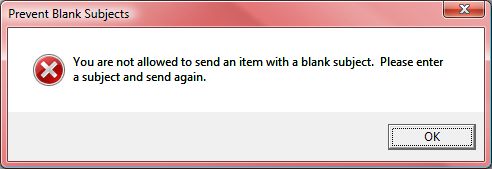
msgbox "You are not allowed to send an item with a blank subject. Please enter a subject and send again.", vbCritical + vbOKOnly, "Prevent Blank Subjects"
Cancel = True
End If
End Sub
Let's test this!!
Create a test message and leave the subject blank.
Click Send.
Outlook should cancel the send and display a pop-up message that looks something like this.

Similarly, if you Forget to Add an Attachment to your Outlook Email here is the code to NOT repeat it!!!
Private Sub Application_ItemSend(ByVal Item As Object, Cancel As Boolean)
'On the next line edit the list of keywords as desired. Be sure to separate each word with a | character.'
Const KEYWORDS = "attached|attachment|attachments|enclosed|enclosure"
'On the next line edit the message that will be displayed when the message should include an attachment as desired.'
Const WARNING_MSG = "Wording in the message suggests that something is attached, but there are no items attached. Do you want to cancel the send and add an attachment?"
'On the next line edit the dialog-box title as desired.'
Const MSG_TITLE = "Attachment Checker"
Dim objRegEx As Object, colMatches As Object, bolAttachment As Boolean, olkAttachment As Outlook.Attachment
Set objRegEx = CreateObject("VBscript.RegExp")
With objRegEx
.IgnoreCase = True
.Pattern = KEYWORDS
.Global = True
End With
Set colMatches = objRegEx.Execute(Item.Body)
If colMatches.count > 0 Then
For Each olkAttachment In Item.Attachments
If olkAttachment.Type <> olEmbeddeditem Then
bolAttachment = True
Exit For
End If
Next
If Not bolAttachment Then
If msgbox(WARNING_MSG, vbQuestion + vbYesNo, MSG_TITLE) = vbYes Then
Cancel = True
End If
End If
End If
Set olkAttachment = Nothing
Set colMatches = Nothing
Set objRegEx = Nothing
End Sub