1. Windows Store
Microsoft enters the lucrative app market, no surprise here. While "Windows Store" (which is the company's name for the online app shop) obviously doesn't work in this early build, the related DLLs and XML resources are already in place and ready to be examined by a variety of tools, such as PE Explorer or Resource Hacker.

All the basic features of any app store are also present in Windows Store -- such as the ability to browse through categories, make in-app purchases, rate apps, download trials and so forth. New, however, is the ability to "stream" apps to your PC, which could lead to a couple of scenarios: 1) an app could be launched instantly after the purchase -- no need to wait until it is fully downloaded; 2) apps could be hosted in the cloud so that users stream only the part of the app they need at any given moment. That would be convenient for someone who'd like a larger product, say an Office suite, on a tablet with limited disk space, or who'd like to access the app from another machine.
Windows 8 collects all apps in its own "Application Explorer" and categorizes each app as either an "Immersive" or a traditional "Desktop" application (see below for more on that):

2. Two-class society
Windows 8 will come in two separate interfaces flavors -- one traditional UI that resembles Windows 7's Aero and one touch-friendly UI specifically tailored to tablets dubbed "Immersive UI". The latter isn't fully implemented (or is too well hidden) in the early Milestone build, yet some specific tablet applications have already been unlocked:
Internet Explorer Immersive: A touch-centric version of Microsoft's IE browser that includes just an address bar (which auto-hides), a browser history and a tabbed view.
Modern Reader: Microsoft's own implementation of a (basic) PDF viewer that has only bare navigation and bookmarking support. (Still, Adobe likely won't be too happy about this.)
System Settings: A touch-optimized "Control Panel" that caters to mobile needs, such as connectivity, time zone settings or device management.
These few tablet apps are literally the tip of the iceberg -- the entire UI has yet to be revealed. While digging through Windows 8's various files, I found hints suggesting that users will be able to switch between the traditional Windows 8 UI and the tablet UI, through what's codenamed the "UIPicker". Also, we've found traces of a "Dock" that is supposed to hold built-in Windows features (such as a search box) and 3rd party apps.
3. Boot in under 20 seconds?
Windows 8 sports a new Hybrid Boot mode which drastically reduces (cold) boot time and will most likely be the default boot option going forward. In essence, it's a combination of "Log Off" and "Hibernate" -- the moment users click on the shutdown button, Windows closes all running applications, logs off and then goes into hibernation mode. Instead of booting up regularly, which usually involves loading hundreds of files and initializing services, drivers and so forth, Windows 8 simply loads the single hibernation file into memory and presents you with the log on screen. I've bench-marked the results on two machines and came away impressed:
However, Hybrid Boot works only if users actually shut down their machines. If a user restarts his or her machine, it boots up cold.
4. Automatic Maintenance
Microsoft puts a heavy emphasis on optimizing and increasing overall stability of Windows 8: A new "Automatic Maintenance" regularly checks for solutions to problems (via Windows Error Report), runs the .NET Optimization Service and defrags all hard disks automatically -- all of this happens while the PC is on idle, of course.
5. Disk Defragmenter
Speaking of defragmentation, the new Disk Defragmenter is finally capable of handling SSD drives and allows users to perform the TRIM command much easier than in Windows 7.
In addition, I've found a new Windows service called "Spot Verifier". According to its descriptions and its related DLL files, it checks for bad sectors in real-time and marks them as "bad" in order to avoid data loss or damage. I've also dug up traces of some underlying file system changes that I couldn't quite make sense of, such as an entirely new file system driver called "NT Protogon FS driver", which looks like a kernel mode driver for some sort of (yet unknown) file system called Protogon. It's unclear, whether this is a major new file system or just some minor subsystem.
6. Performance boost
In the performance department, Microsoft has also made some serious improvements: After four weeks of productive use (and even putting it under the load of dozens of applications), Windows 8 somehow manages to perform snappier than an identically configured Windows 7 installation. The log on/off process, launching applications, doing heavy multitasking and performing day-to-day tasks is just a tad quicker -- Microsoft managed to reduce any delay there was and improve responsiveness.
7. Usability goal: Click reduction
Neither the traditional nor the classic Windows UI are anywhere near finished. Yet, Microsoft's usability department is busy simplifying the user interface and reducing overall complexity.
For example, once you connect to a public Wi-Fi, Windows 8 offers a new dialog to enter the user name and password to get online access:

Windows 7 users would need to connect to the Wi-Fi, open up a browser and then wait for the online provider's landing page to pop up.
8. Windows Explorer
Windows Explorer is the next tool that received (quite) a UI overhaul and a perfect example of where Microsoft reduces the steps necessary to perform tasks: Like it or not, Windows 8 is likely to come with a ribbonized version of Windows Explorer, as first revealed by Windows experts Paul Thurott and Rafael Rivera. While actually working with this explorer for a couple of weeks we have to admit that, despite its hideous look, it's absolutely wonderful to work with. Day-to-day file tasks are simpler and the ribbon adapts to the file contents (for example, "Music Tools" below).

9. ISO mounting
Additionally, Windows 8 sports its own ISO mounting tool, thus eliminating the need to go and download 3rd party tools, which are often riddled with annoying toolbars and ads.
10: Windows Time Machine
Last but not least, Microsoft finally managed to give its "Restore Previous Versions" (Volume Shadow Copy) feature a usable and intuitive interface: History Vault lets you go back in time and restore earlier versions of a folder – just in case you accidentally made some unwanted changes or deleted some of its contents, which is pretty similar to Apples Time Machine in Mac OS X.

This is the kind of stuff they'll make all the usability fanatics go wild: Technology that has been there before, but which is (for the first time ever) actually easy to use and accessible to beginners.
More to come?
Windows 8 won't be available next year, but even this early build looks promising and we believe there is still tons of hidden stuff to be discovered. We'll keep you posted on our findings.
Source


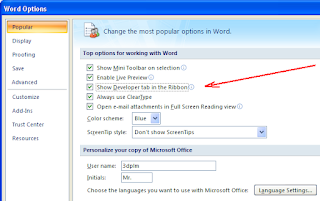
 How to reveal hidden tab in Word 2007